Launch the SkySenders App and log in.
Click All Mailboxes from the top-left dashboard menu.
A list of all your mailboxes will be displayed.
Select the mailbox you want to remove.
Click on More at the top-right of the screen.

Click Delete Mailbox from the dropdown menu.
Confirm your action when prompted.

The mailbox will be removed from your account.
You can verify this in the All Mailboxes Dashboard.
Deleting a mailbox is permanent. Please ensure the mailbox is no longer needed before proceeding.
Users can delete a mailbox directly from the list view with minimal steps.
Launch the SkySenders App.
Click All Mailboxes from the top-left menu on the dashboard.
A list of all your purchased mailboxes will be displayed.
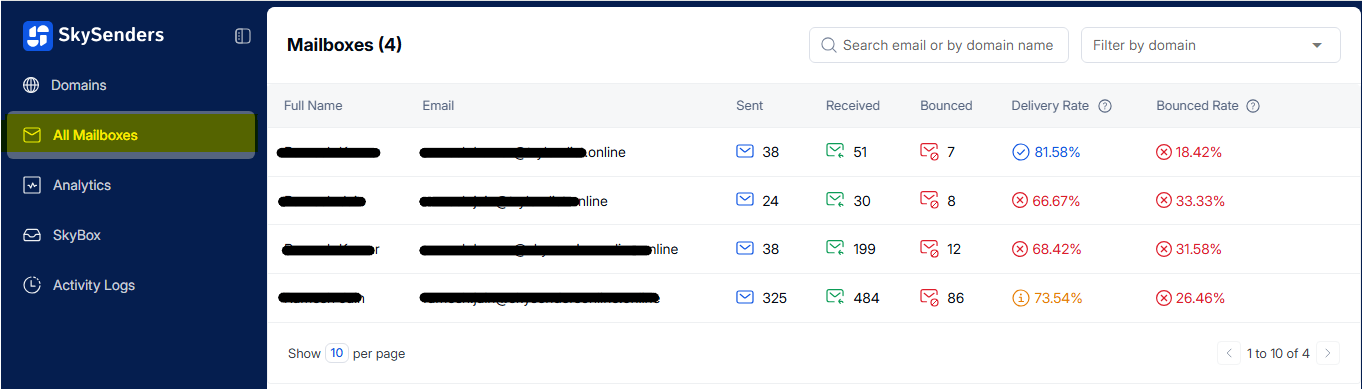
Hover your mouse over the mailbox you want to remove.
Click the 🗑Delete icon that appears on the right side.
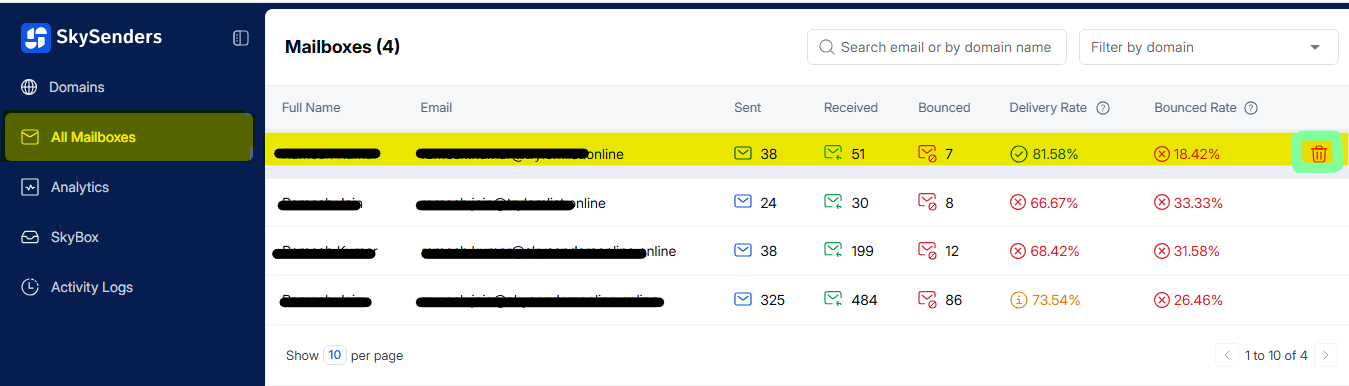
Confirm the deletion when prompted.
This deletion is permanent. Make sure the mailbox is no longer needed before confirming.
