🌐 Step 1: Open Domain Settings
Go to the SkySenders App.
Click on “Domain” from the top-left menu.
All your purchased domains will be listed.
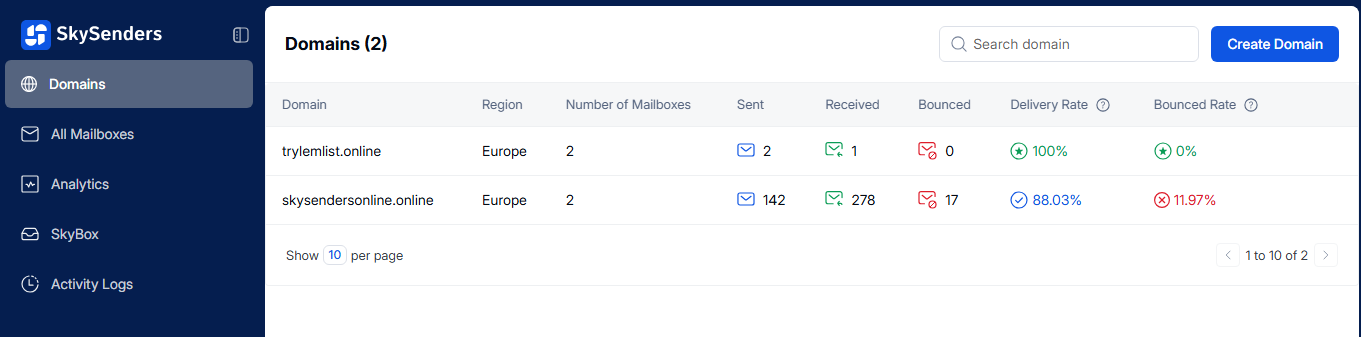
From the list, choose the domain where you want to add mailboxes.
Click on the “Add Mailbox” button.
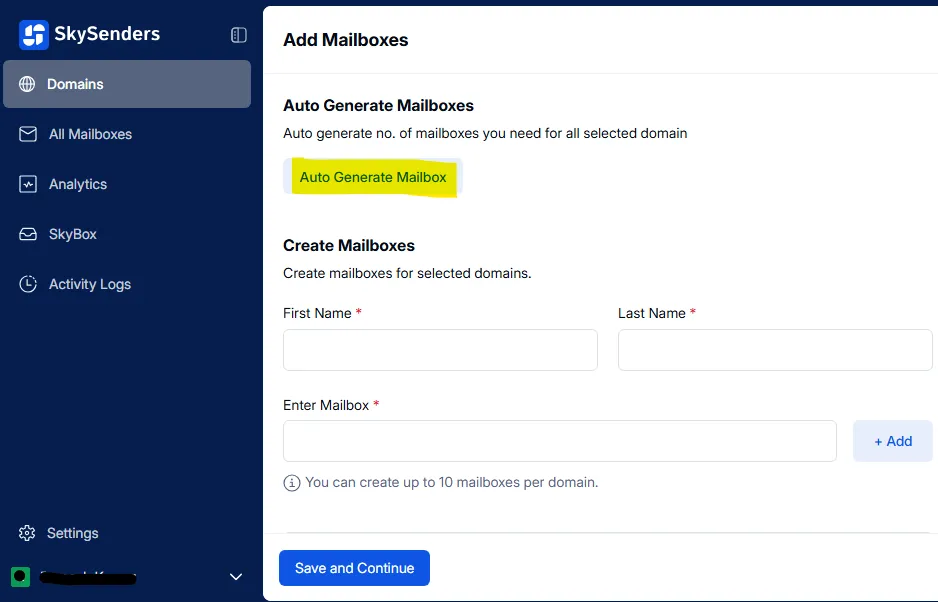
You'll be presented with two options: Auto Generate Mailbox or Manual Entry.
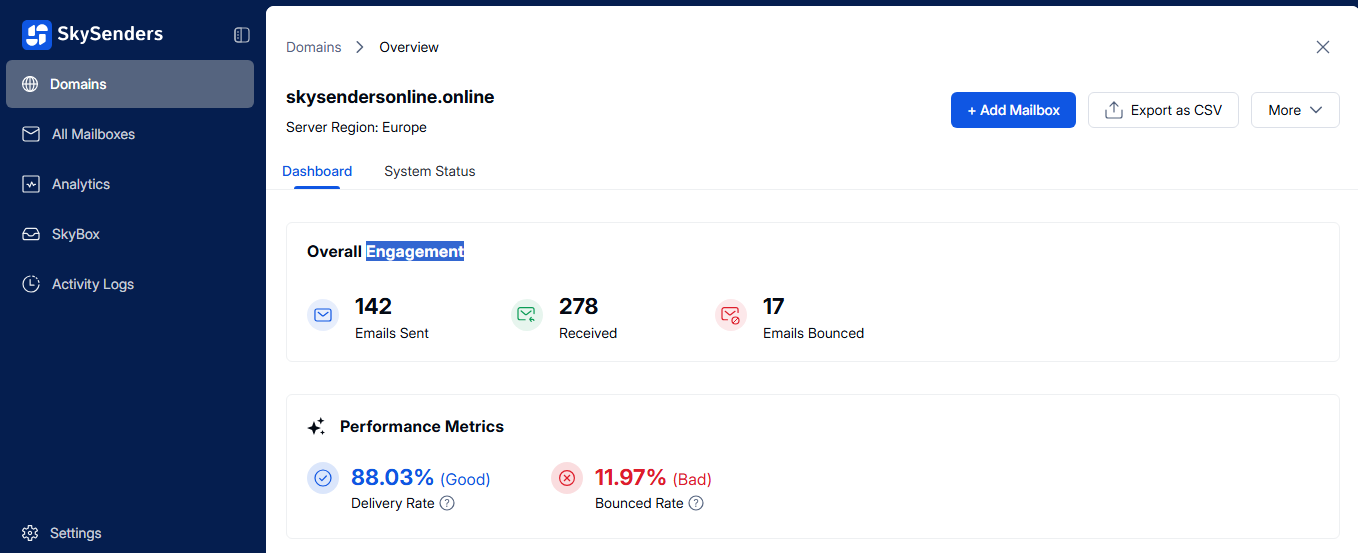
Click on “Auto Generate Mailbox”.
Fill in the required fields, such as:
Number of mailboxes
Naming preferences
Click “Generate Mailboxes”.
Review the generated mailbox details under the Domain dropdown.
Click “Save and Continue” to finalize.
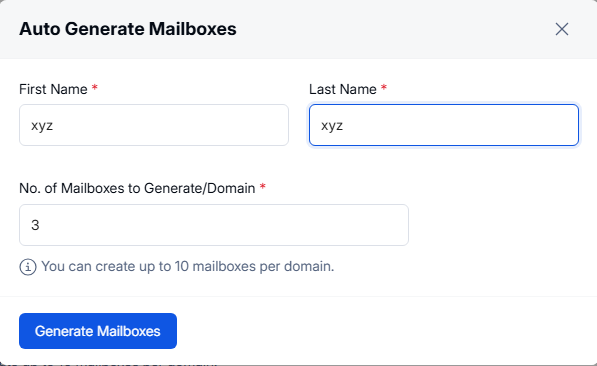
⚠ Note: You can create up to 10 mailboxes per domain
Enter the required details:
First Name
Last Name
Mailbox Address
Click “Add”.
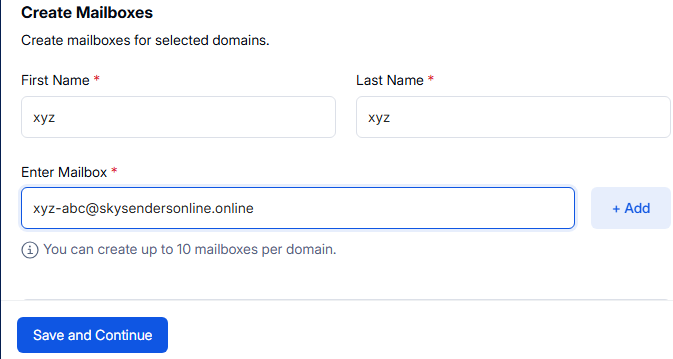
Once you’ve added the desired mailboxes, click “Save and Continue.”
⚠ Note: You can create up to 10 mailboxes per domain
All domain management is accessible via the Domain tab.
Choose Auto Generate for bulk mailbox creation.
Use Manual Entry for customized setup.
A total of 10 mailboxes per domain can be created.
